How arthritis affects technology use
- Pain and stiffness in finger joints make pressing small buttons and tapping screens uncomfortable.
- Weak grip makes holding a handset or a heavy tablet tiring.
- Reduced fine control makes swiping, pinching and typing difficult.
- Swelling and deformity change how the hand fits around objects.
- Fatigue after a few minutes of use.
- Thumb arthritis is especially disabling for touchscreens and keypads.
- Tremor or poor coordination in some people adds to the problem.
See arthritis daily living gadgets for a general view of daily tasks.
Phones
### Choose the right phone
- Large-button phones, with big, well-spaced keys and clear numbers, for landlines and mobiles. Raised buttons help.
- Amplified phones, with loud ringers and adjustable volume, helpful for hearing loss too; see amplified phones.
- Picture-dial phones, with buttons for family photos, so one press calls a person.
- Hands-free and speakerphone options, so the phone can sit on a table.
- Cordless handsets that are light and shaped for a comfortable grip.
- Flip phones with a keypad and a hinge that is easy to open, for those who do not want a smartphone.
- A smartphone with accessibility settings (see below) for people who prefer one.
- A simple smartphone launcher that shows only a few big icons.
### Make the handset comfortable
- Hold the phone in a stand or on a table, rather than gripping.
- Use a phone grip, loop or pop-socket attached to the back, which gives a hold with less finger force.
- Use a wrist strap to prevent drops.
- Use a headset or Bluetooth earphones for long calls, which free the hands.
- A shoulder rest or a lightweight handset for landlines.
- A larger, thicker case with a non-slip finish.
### Smartphone accessibility settings
Most smartphones include features that help. Ask a family member to set them up.
- Voice assistant: speak to make calls, send messages, set alarms and ask questions, with no typing.
- Voice typing (dictation) instead of the keyboard.
- Larger text and icons, and bold text.
- Touch accommodations: a longer touch duration, ignoring repeated touches and tap assistance to reduce accidental activation.
- Back tap or shortcuts to open the camera, torch or emergency contacts with a single action.
- Auto-answer for calls from selected people, if safe and suitable.
- Speakerphone as default.
- Simplified home screen, with only the most-used apps.
- Emergency SOS feature configured to call a family member and the emergency number.
- Stylus: a pen with a soft tip, thicker barrel and rubber grip, instead of a fingertip.
- Screen protector that reduces glare.
For people with low vision or hearing loss, see phone accessibility features for seniors.
Remote controls
- Large-button remotes with a few clearly labelled keys: power, volume, channel, mute.
- Remotes with a large grip, or a soft sleeve to increase thickness.
- Voice remotes, which respond to spoken commands.
- A universal remote, programmed for the television, set-top box and sound, so one device controls everything.
- Phone apps as remote controls (for those who like touchscreens).
- A remote holder or a lap tray, so the remote is always in reach.
- Rubber bands or tape, carefully, to mark the essential keys.
- TV headphones for hearing loss; see TV headphones and streamers.
Ask the family to set up channels and favourites, so that the person does not need to navigate menus.
Light switches, plugs and appliances
- Rocker or paddle switches instead of small toggles, which can be pressed with the palm or a knuckle.
- Touch lamps and lamps with large buttons, or a base you tap.
- Smart plugs and voice assistants to turn lights and fans on and off by voice.
- Remote-controlled sockets for lamps and heaters.
- Plug pullers that make removal easier.
- Motion-sensor lights that come on automatically; see motion-sensor night lights.
- Switch extenders, adding leverage to small switches.
- Fan and air-conditioner remotes with big buttons, or voice control.
Use appliances with simple controls and avoid cords that are hard to unplug.
Doors, keys and taps
- Lever handles instead of round knobs for doors and taps.
- Key turners, a larger handle that fits over a key.
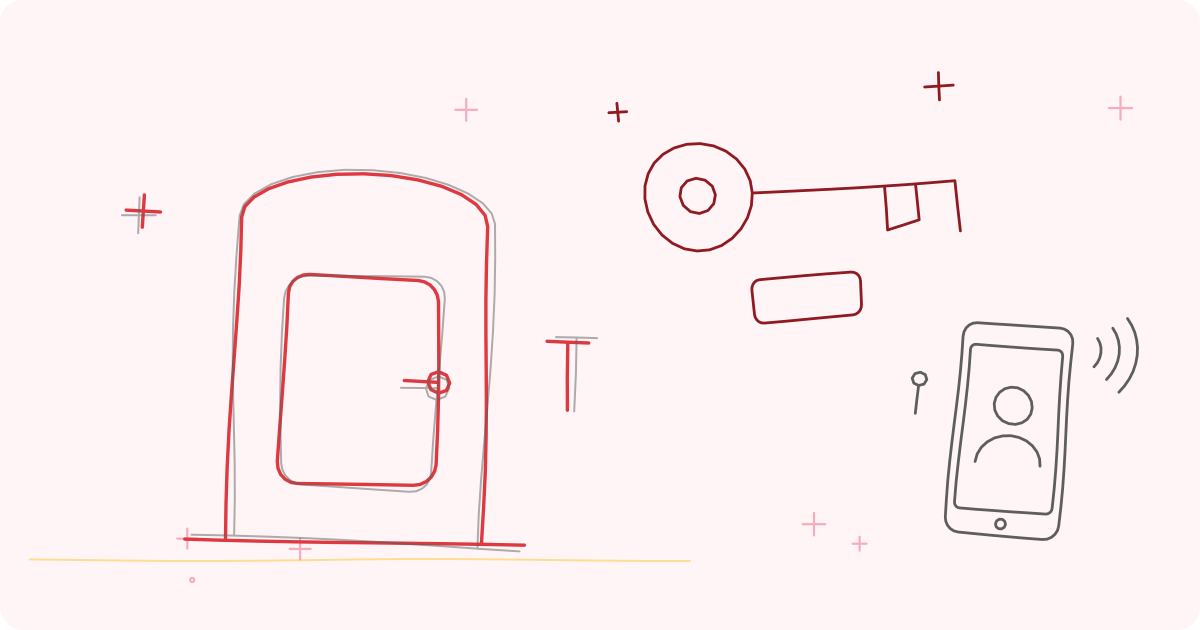
- Keyless entry: a keypad lock or a key safe, which avoids fiddly keys; see key safes.
- A door opener or an easy-pull handle.
- Tap turners and lever taps; see jar openers and kitchen aids.
- Zip pulls and ring handles on bags and drawers.
- Lightweight door closers, adjusted so doors are not heavy.
Protecting the hands
- Take breaks during long calls or use of devices.
- Use both hands to share the load, or alternate.
- Avoid gripping tightly; use grips, stands and straps.
- Keep hands warm, since cold stiffens joints.
- Do gentle hand exercises as taught by a physiotherapist or OT; see grip strength and hand exercises for older adults.
- A wrist support for painful wrists; see wrist supports.
- Pain relief and treatment as advised by a doctor; see painkillers and older adults.
- Avoid texting for long periods; use voice or call.
Safety and scams
Easier technology also means more exposure to fraud. Phone and online scams target older adults. Tell your parent never to share OTPs, PINs or passwords, never to transfer money to someone who calls out of the blue and to hang up and call back on a known number. Ask a family member to review bank and payment settings. For tips, see preventing doorstep scams and phone fraud. India's cyber crime helpline is 1930, though numbers should be checked.
Setting up for success
- Ask your parent what they want to do, not what you think they should. Do they want to call grandchildren, watch cricket or turn the fan on?
- Start with one change, try it for a week and review.
- Set up with them, not for them, so that they understand.
- Write simple instructions in large print, near the device.
- Be patient with learning, and repeat.
- Check regularly that equipment works and batteries are charged.
- Keep an alert device near; see panic pendants and personal alarms.
A one-week set-up plan
A short plan avoids overwhelm. On the first day, ask your parent which three things they most want to do with their phone and television, for example calling a grandchild, watching a favourite channel and switching on the bedside lamp. On the second day, set up the phone so those three things are one tap or one spoken command away, and put the phone on a stand beside the favourite chair. On the third day, set up the remote with large labels on the essential buttons and place it in a lap tray. On the fourth day, add a touch lamp or a smart plug for the lamp. On the fifth day, practise together without help and note what is still awkward. On the sixth day, adjust settings such as text size, touch time and volume. On the seventh day, review: what is used, what is ignored and what to change. Keep the written instructions in large print by the chair, and repeat the practice the following week. Small, steady steps work better than a sudden change of everything.
When to ask a professional
An occupational therapist can assess hand function and recommend aids and techniques; see occupational therapy home assessment. A doctor or rheumatologist should manage arthritis and pain; see arthritis at home: a complete guide. An audiologist or optometrist can help with hearing and vision. Our care advisors can help set up devices and teach their use.
Equipment mentioned in this guide
Frequently asked questions
What kind of phone is best for someone with arthritis?
A large-button phone, an amplified or picture-dial phone, or a smartphone with voice control and big icons. Use a stand, speakerphone or headset so the hand does not have to grip.
How can I make a smartphone easier for stiff fingers?
Use voice assistant and dictation, increase text and icon size, change touch settings, use a stylus and set up emergency shortcuts.
Are there easier remote controls?
Yes. Large-button remotes, voice remotes and universal remotes with fewer keys, with a holder so it is always within reach.
How can I make light switches easier?
Use rocker switches, touch lamps, motion-sensor lights, smart plugs and voice control, or switch extenders.
How do I protect my parent from phone scams?
Tell them never to share OTPs or PINs, to hang up and call back on a known number and to ask family before sending money. Report fraud promptly.
Sources and further reading
- Arthritis Foundation and Versus Arthritis, guidance on assistive devices and joint protection
- Royal College of Occupational Therapists, guidance on assistive technology
- Ministry of Home Affairs, India, national cyber crime reporting portal guidance
- World Health Organization, Global report on assistive technology (2022)
Tags: phone for arthritislarge button remotevoice assistant seniorseasy switchesarthritis gadgetsaccessible technologyDaily living aidsAmplified big-button phoneHearing and vision aidsJoint and pain support
This article is for general education and is not medical advice. Speak to your doctor before changing your exercise, diet or medicines.